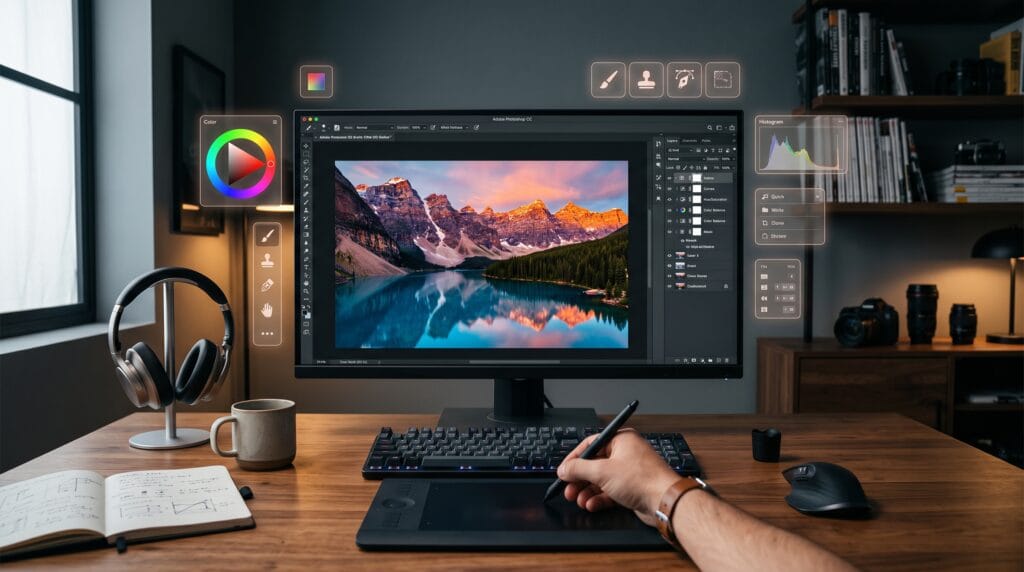
Adobe Photoshop is one of the world’s most popular image editing applications, used by photographers, graphic designers, marketers, digital artists, and content creators. Whether you want to retouch photos, design social media graphics, create marketing materials, or produce digital artwork, learning Photoshop opens countless creative opportunities. This Photoshop tutorial is designed specifically for beginners, guiding you through the essential tools, editing techniques, and professional workflows needed to build confidence and create high-quality designs.
Although Photoshop offers hundreds of features, beginners only need to master a small set of core tools before progressing to advanced editing. By understanding layers, selections, masks, adjustments, and non-destructive editing techniques, you’ll build a strong foundation that supports future creative projects.
Why Learn Photoshop Tutorial?
Photoshop remains an industry standard for digital image editing.
Benefits include:
- Professional photo editing
- Graphic design creation
- Social media content production
- Website graphics
- Marketing materials
- Digital illustration
- Product image enhancement
Learning Photoshop is a valuable skill for freelancers, entrepreneurs, photographers, marketers, and designers.
Getting Started with Photoshop
Before editing images, become familiar with the Photoshop workspace.
The main interface includes:
- Menu Bar
- Toolbar
- Options Bar
- Layers Panel
- Properties Panel
- Color Panel
- History Panel
- Workspace Tabs
Understanding where tools are located speeds up your editing workflow.
Photoshop Tutorials to Understanding the Photoshop Workspace
Toolbar
The toolbar contains your most-used editing tools.
Popular tools include:
- Move Tool
- Marquee Tool
- Lasso Tool
- Crop Tool
- Brush Tool
- Eraser Tool
- Clone Stamp Tool
- Healing Brush Tool
- Gradient Tool
- Text Tool
Learning these tools first will dramatically improve your editing efficiency.
Layers Panel
Layers are one of Photoshop’s most powerful features.
Each layer acts independently, allowing you to edit without permanently affecting other elements.
Common layer types include:
- Image Layers
- Text Layers
- Shape Layers
- Adjustment Layers
- Smart Objects
Always use layers instead of editing directly on the original image.
Photoshop Tutorials to Essential Photoshop Tools
Move Tool
Used for:
- Positioning images
- Rearranging elements
- Aligning objects
This is one of the most frequently used tools.
Crop Tool
The Crop Tool helps you:
- Improve composition
- Remove distractions
- Resize images
- Prepare graphics for social media
Crop with purpose rather than removing too much information.
Brush Tool
Perfect for:
- Painting
- Retouching
- Digital illustration
- Layer masks
Experiment with different brush sizes and hardness settings.
Spot Healing Brush
One-click photo retouching.
Ideal for removing:
- Acne
- Dust spots
- Scratches
- Small distractions
This tool analyzes surrounding pixels to create natural corrections.
Clone Stamp Tool
Useful for:
- Removing unwanted objects
- Repairing damaged images
- Duplicating textures
Sample clean areas before painting.
Text Tool
Create:
- Headlines
- Social media graphics
- Posters
- Advertisements
- Website banners
Choose readable fonts and maintain consistent typography.
Photoshop Tutorials to Understanding Layers
Layers allow non-destructive editing.
Advantages include:
- Easy revisions
- Better organization
- Flexible editing
- Creative freedom
Organize projects by naming layers clearly.
Layer Masks
Layer masks hide or reveal portions of a layer without deleting pixels.
Benefits:
- Non-destructive editing
- Smooth blending
- Professional composites
- Flexible adjustments
Masks are an essential professional workflow.
Photoshop Tutorials to Working with Selections
Selections allow you to edit only specific areas.
Common selection tools:
- Marquee Tool
- Lasso Tool
- Polygonal Lasso
- Magnetic Lasso
- Object Selection Tool
- Quick Selection Tool
- Magic Wand Tool
Accurate selections improve editing quality.
Photoshop Tutorials to Image Adjustments
Improve photographs using adjustment layers.
Popular adjustments include:
- Brightness & Contrast
- Levels
- Curves
- Exposure
- Vibrance
- Hue/Saturation
- Color Balance
- Black & White
Adjustment layers preserve your original image.
Photoshop Tutorials to Using Filters
Photoshop includes numerous creative filters.
Examples:
- Gaussian Blur
- Camera Raw Filter
- Smart Sharpen
- Liquify
- Noise Reduction
- Lens Correction
Apply filters subtly for natural-looking results.
Photoshop Tutorials to Remove Backgrounds
Background removal is one of the most common editing tasks.
Methods include:
- Select Subject
- Remove Background
- Pen Tool
- Layer Masks
- Quick Selection Tool
Always refine edges for professional results.
Photoshop Tutorials to Photo Retouching Basics
Improve portraits by:
- Removing blemishes
- Whitening teeth
- Brightening eyes
- Softening skin naturally
- Adjusting lighting
Avoid over-editing to maintain realism.
Photoshop Tutorials to Working with Smart Objects
Smart Objects protect image quality during editing.
Advantages:
- Non-destructive scaling
- Editable filters
- Reusable graphics
- Better workflow flexibility
Professional designers frequently rely on Smart Objects.
Photoshop Tutorials for Keyboard Shortcuts Every Beginner Should Learn
| Shortcut | Function |
|---|---|
| Ctrl/Cmd + Z | Undo |
| Ctrl/Cmd + J | Duplicate Layer |
| Ctrl/Cmd + T | Free Transform |
| Ctrl/Cmd + S | Save |
| Ctrl/Cmd + D | Deselect |
| B | Brush Tool |
| V | Move Tool |
| C | Crop Tool |
| M | Marquee Tool |
| T | Text Tool |
Learning shortcuts dramatically improves editing speed.
Beginner Photoshop Projects
Practice with simple projects such as:
- Social media post
- YouTube thumbnail
- Product mockup
- Business flyer
- Photo retouch
- Event poster
- Website banner
- Logo presentation
Practical projects accelerate learning.
Professional Workflow Tips in Photoshop Tutorials
Develop efficient habits by:
- Working with layers
- Saving versions regularly
- Organizing files into folders
- Using adjustment layers
- Naming layers clearly
- Keeping backups
Good organization prevents future editing problems.
Common Photoshop Tutorials Mistakes
Avoid these beginner errors:
- Editing the original layer
- Ignoring layer organization
- Excessive photo retouching
- Overusing filters
- Low-resolution images
- Poor color management
- Forgetting to save frequently
Small workflow improvements lead to professional results.
Recommended Photoshop Resources
| Resource | Purpose |
|---|---|
| Adobe Photoshop | Professional photo editing |
| Adobe Fonts | Premium typography |
| Adobe Stock | Stock photography |
| Unsplash | Free high-quality images |
| Pexels | Free stock photos |
| Freepik | Design assets |
| Behance | Creative inspiration |
| Envato Elements | Templates and graphics |
Pros and Cons of Photoshop
| Pros | Cons |
|---|---|
| Industry-standard software | Subscription required |
| Powerful editing tools | Steep learning curve |
| Excellent layer system | Resource-intensive |
| Advanced retouching | Many features for beginners |
| Extensive plugin support | Requires regular practice |
Frequently Asked Questions on Photoshop Tutorials
1. Is Photoshop difficult to learn?
Photoshop has many advanced features, but beginners can become comfortable with the basics by practicing core tools such as layers, selections, brushes, and adjustment layers.
2. How long does it take to learn Photoshop?
Most beginners can learn essential editing techniques within a few weeks of regular practice, while mastering advanced workflows may take several months.
3. What is the most important Photoshop feature?
Layers are considered the foundation of Photoshop because they allow flexible, non-destructive editing and make complex projects easier to manage.
4. Can Photoshop be used for graphic design?
Yes. Photoshop is widely used for social media graphics, website banners, advertisements, posters, product mockups, and many other creative design projects.
Photoshop Tutorials Learning Checklist
- Learn the workspace
- Understand layers
- Practice selection tools
- Use layer masks
- Master adjustment layers
- Learn photo retouching
- Explore filters
- Practice keyboard shortcuts
- Complete real-world projects
- Continue learning advanced techniques
Best Practices for Beginners
To improve your Photoshop skills:
- Practice consistently with real projects.
- Use non-destructive editing whenever possible.
- Organize your layers and files.
- Learn keyboard shortcuts to speed up your workflow.
- Focus on mastering the fundamentals before exploring advanced features.
- Study professional designs for inspiration.
- Build a portfolio to track your progress.
Developing these habits early will make future projects faster, cleaner, and more professional.
Conclusion on Photoshop Tutorials
This Photoshop tutorial provides a solid foundation for anyone beginning their photo editing and graphic design journey. By mastering essential tools, understanding layers and masks, using adjustment layers, and following non-destructive editing workflows, you can confidently create professional-quality images for personal or commercial projects. Photoshop is a skill that improves with practice, and every project you complete will strengthen your creativity, technical ability, and confidence. With patience and consistent learning, you’ll soon be ready to tackle more advanced editing techniques and produce impressive visual content.
Also Read: “25 Graphic Design Ideas to Spark Your Creativity“